怎么打开Windows Powershell ISE?
1、点开电脑开始菜单。

2、点击任意一个列表中的字母。
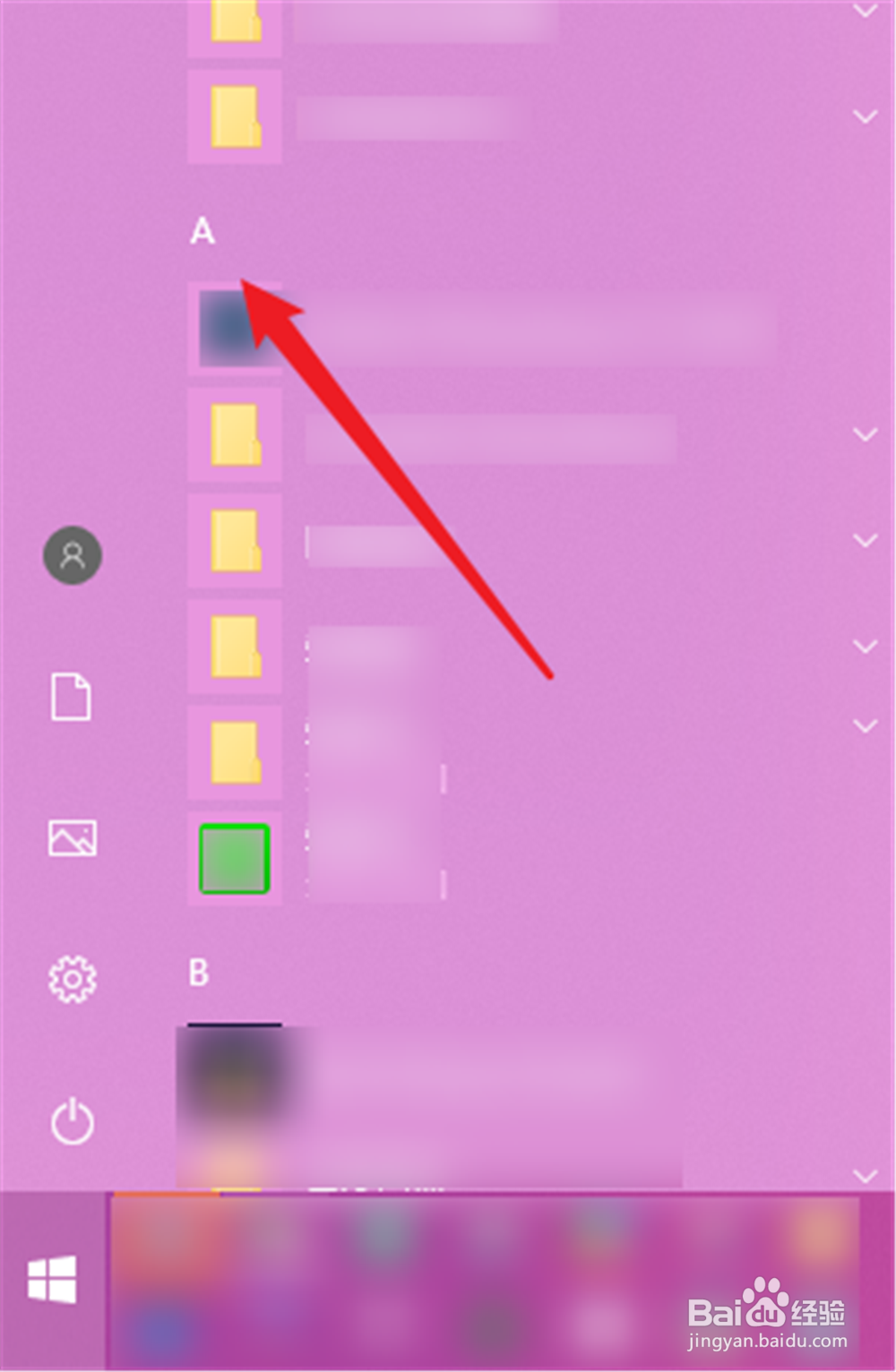
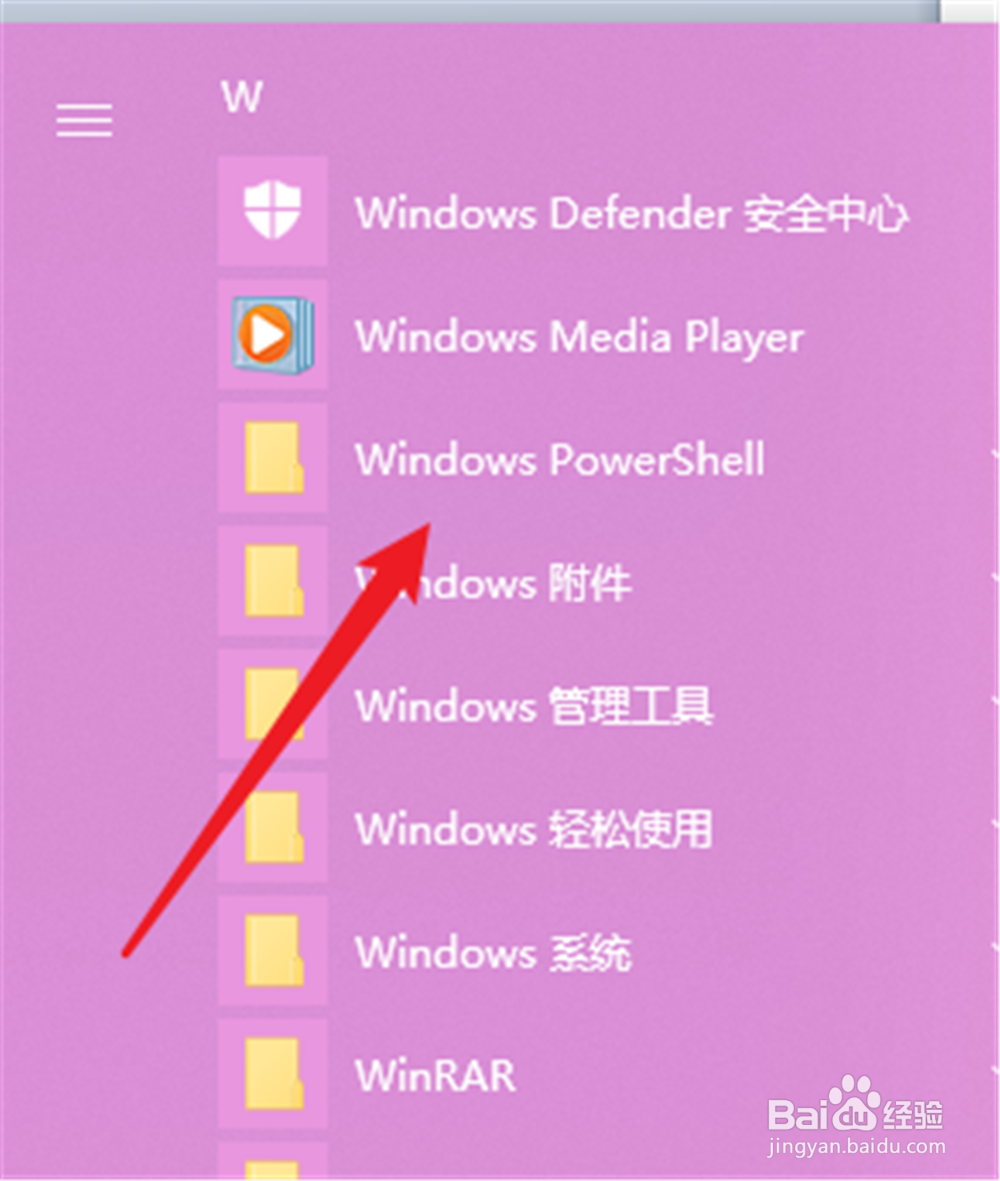
3、然后选择“W”打开该字母开头的项目。

4、把其中的“Windows Powershell ”展开。
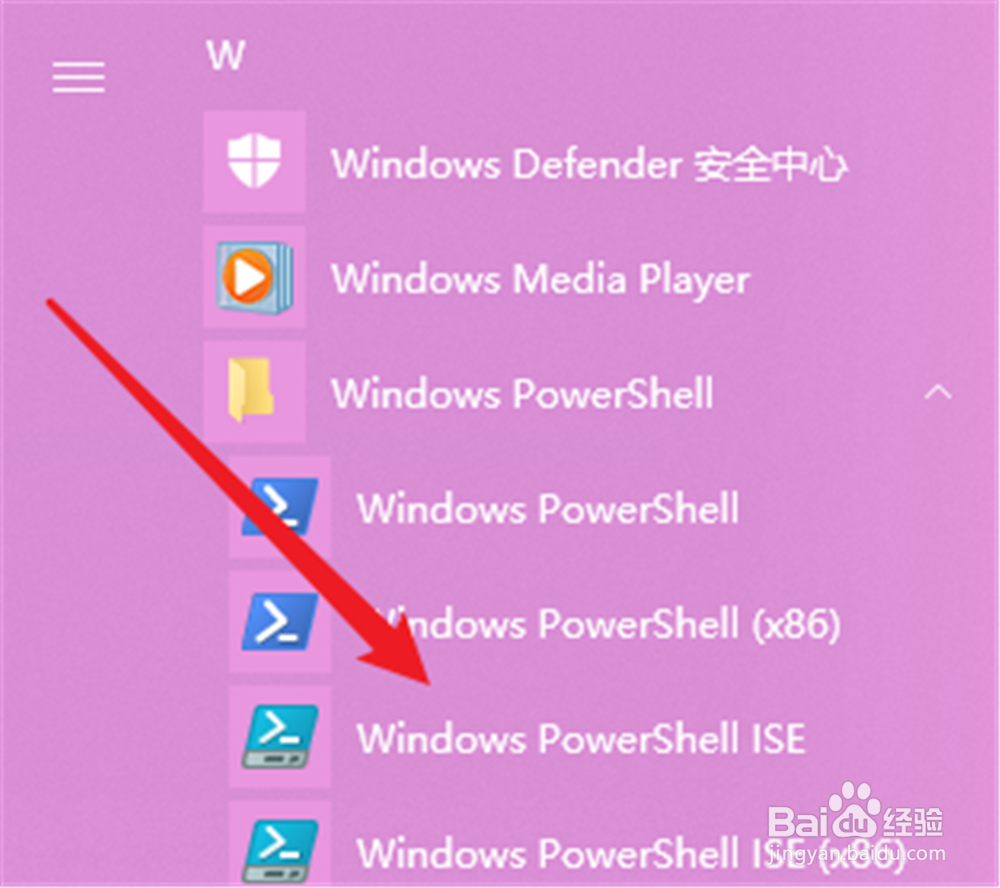
5、就能看到“Windows Powershell ISE”,打开。
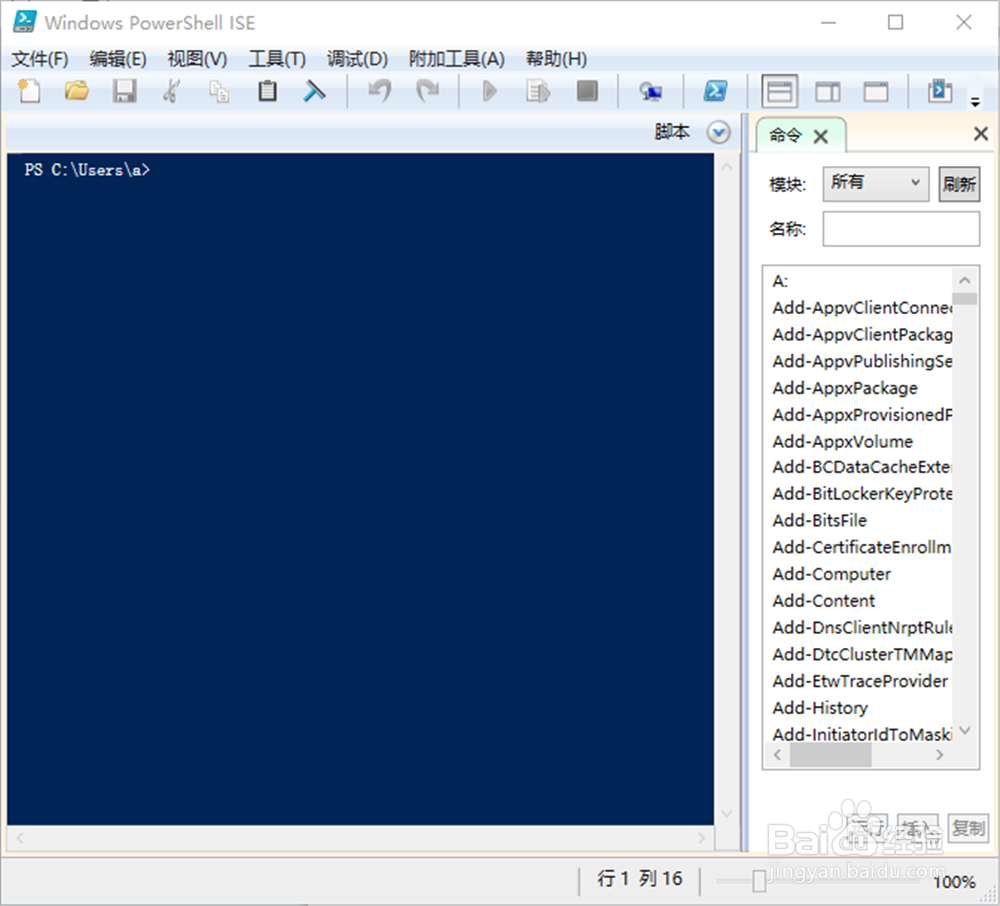
6、即可打开Windows Powershell ISE界面。
1、打开开始菜单;
2、点击列表里面的任意字母;
3、点击W打开;
4、展开Windows Powershell文件夹;
5、找到“Windows Powershell ISE”打开;
6、即可将进入界面。
声明:本网站引用、摘录或转载内容仅供网站访问者交流或参考,不代表本站立场,如存在版权或非法内容,请联系站长删除,联系邮箱:site.kefu@qq.com。
阅读量:172
阅读量:107
阅读量:143
阅读量:99
阅读量:30