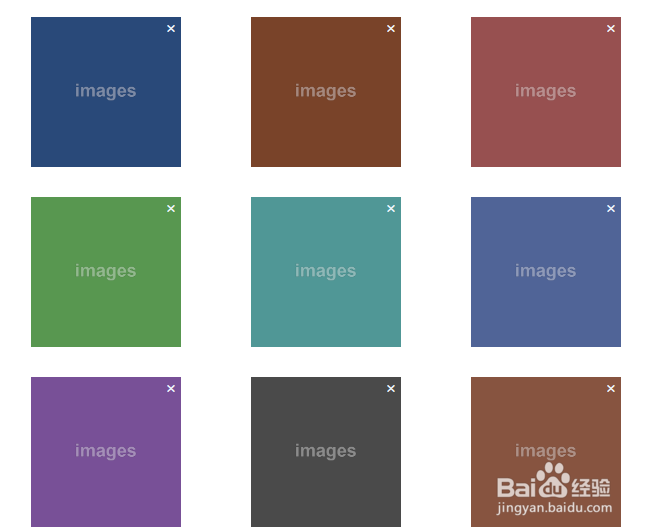
jQuery图片拖拽网格布局
1、新建html。
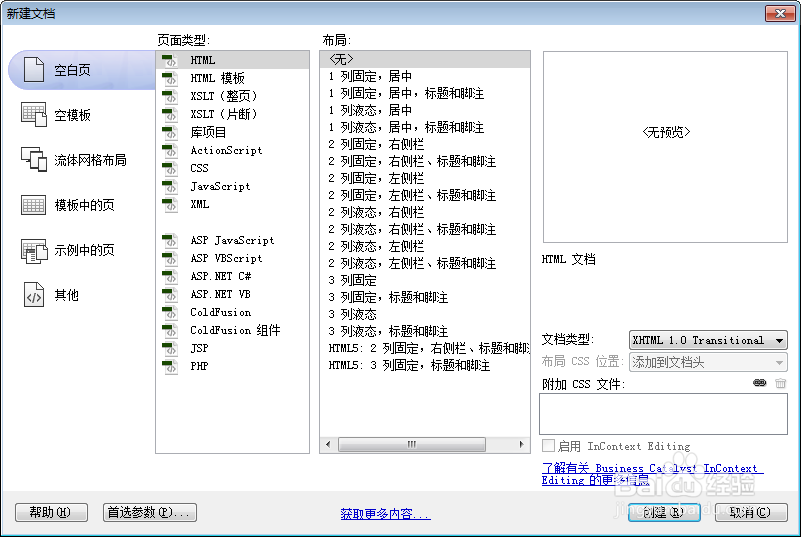
2、在body标签中输入html。
<div class="item_container">
<div class="item_content" id="imageChange">
<ul>
<li>
<div class="item"> <img src="img/500x500-1.png
<span onClick="removePicture(this)" class="rmPicture close">×</span> </div>
</li>
<li>
<div class="item"> <img src="img/500x500-2.png
<span onClick="removePicture(this)" class="rmPicture close">×</span> </div>
</li>
<li>
<div class="item"> <img src="img/500x500-3.png
<span onClick="removePicture(this)" class="rmPicture close">×</span> </div>
</li>
<li>
<div class="item"> <img src="img/500x500-4.png
<span onClick="removePicture(this)" class="rmPicture close">×</span> </div>
</li>
<li>
<div class="item"> <img src="img/500x500-5.png
<span onClick="removePicture(this)" class="rmPicture close">×</span> </div>
</li>
<li>
<div class="item"> <img src="img/500x500-6.png
<span onClick="removePicture(this)" class="rmPicture close">×</span> </div>
</li>
<li>
<div class="item"> <img src="img/500x500-7.png
<span onClick="removePicture(this)" class="rmPicture close">×</span> </div>
</li>
<li>
<div class="item"> <img src="img/500x500-8.png
<span onClick="removePicture(this)" class="rmPicture close">×</span> </div>
</li>
<li>
<div class="item"> <img src="img/500x500-9.png
<span onClick="removePicture(this)" class="rmPicture close">×</span> </div>
</li>
</ul>
</div>
</div>

3、书写css样式。
<style type="text/css">
.item_content ul{list-style:none;}
.item_content ul li{width:200px;height:160px;float:left;margin:10px }
.item_content{width:740px;height:auto;border:1px solid #ccc;float:left;}
.item_content .item{width:200px;height:120px;line-height:120px;text-align:center;cursor:pointer;background:#ccc;}
.item_content .item img{width:200px;height:120px;border-radius:6px;}
.close{display:block;width:20px;height:20px;top:0;right:0;z-index:9999;position:absolute;text-align:center;font-size:16px;cursor:pointer;color:aliceblue;}
</style>

4、书写jq特效。
<script>
$(function() {
function Pointer(x, y) {
this.x = x ;
this.y = y ;
}
function Position(left, top) {
this.left = left ;
this.top = top ;
}
$(".item_container .item").each(function(i) {
this.init = function() {
this.box = $(this).parent() ;
$(this).attr("index", i).css({
position : "absolute",
left : this.box.offset().left,
top : this.box.offset().top
}).appendTo(".item_container") ;
this.drag() ;
},
this.move = function(callback) {
$(this).stop(true).animate({
left : this.box.offset().left,
top : this.box.offset().top
}, 500, function() {
if(callback) {
callback.call(this) ;
}
}) ;
},
this.collisionCheck = function() {
var currentItem = this ;
var direction = null ;
$(this).siblings(".item").each(function() {
if(
currentItem.pointer.x > this.box.offset().left &&
currentItem.pointer.y > this.box.offset().top &&
(currentItem.pointer.x < this.box.offset().left + this.box.width()) &&
(currentItem.pointer.y < this.box.offset().top + this.box.height())
) {
if(currentItem.box.offset().top < this.box.offset().top) {
direction = "down" ;
} else if(currentItem.box.offset().top > this.box.offset().top) {
direction = "up" ;
} else {
direction = "normal" ;
}
this.swap(currentItem, direction) ;
}
}) ;
},
this.swap = function(currentItem, direction) {
if(this.moveing) return false ;
var directions = {
normal : function() {
var saveBox = this.box ;
this.box = currentItem.box ;
currentItem.box = saveBox ;
this.move() ;
$(this).attr("index", this.box.index()) ;
$(currentItem).attr("index", currentItem.box.index()) ;
},
down : function() {
var box = this.box ;
var node = this ;
var startIndex = currentItem.box.index() ;
var endIndex = node.box.index(); ;
for(var i = endIndex; i > startIndex ; i--) {
var prevNode = $(".item_container .item[index="+ (i - 1) +"]")[0] ;
node.box = prevNode.box ;
$(node).attr("index", node.box.index()) ;
node.move() ;
node = prevNode ;
}
currentItem.box = box ;
$(currentItem).attr("index", box.index()) ;
},
up : function() {
var box = this.box ;
var node = this ;
var startIndex = node.box.index() ;
var endIndex = currentItem.box.index(); ;
for(var i = startIndex; i < endIndex; i++) {
var nextNode = $(".item_container .item[index="+ (i + 1) +"]")[0] ;
node.box = nextNode.box ;
$(node).attr("index", node.box.index()) ;
node.move() ;
node = nextNode ;
}
currentItem.box = box ;
$(currentItem).attr("index", box.index()) ;
}
}
directions[direction].call(this) ;
},
this.drag = function() {
var oldPosition = new Position() ;
var oldPointer = new Pointer() ;
var isDrag = false ;
var currentItem = null ;
$(this).mousedown(function(e) {
e.preventDefault() ;
oldPosition.left = $(this).position().left ;
oldPosition.top = $(this).position().top ;
oldPointer.x = e.clientX ;
oldPointer.y = e.clientY ;
isDrag = true ;
currentItem = this ;
}) ;
$(document).mousemove(function(e) {
var currentPointer = new Pointer(e.clientX, e.clientY) ;
if(!isDrag) return false ;
$(currentItem).css({
"opacity" : "0.8",
"z-index" : 999
}) ;
var left = currentPointer.x - oldPointer.x + oldPosition.left ;
var top = currentPointer.y - oldPointer.y + oldPosition.top ;
$(currentItem).css({
left : left,
top : top
}) ;
currentItem.pointer = currentPointer ;
currentItem.collisionCheck() ;
}) ;
$(document).mouseup(function() {
if(!isDrag) return false ;
isDrag = false ;
currentItem.move(function() {
$(this).css({
"opacity" : "1",
"z-index" : 0
}) ;
}) ;
}) ;
}
this.init() ;
}) ;
}) ;
</script>
5、添加引用min.js。
<script src="js/jquery-1.8.3.min.js"></script>
6、网页整体代码架构。
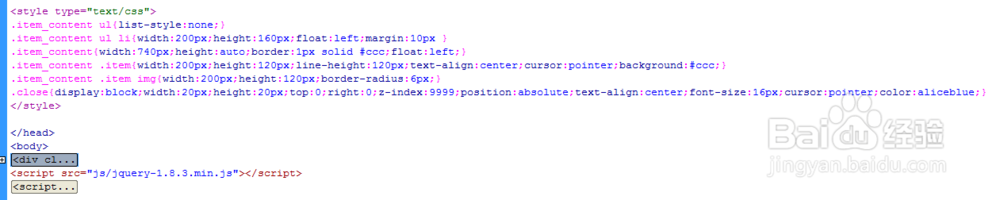
7、查看效果。