jQuery EasyUI从入门到精通(9)
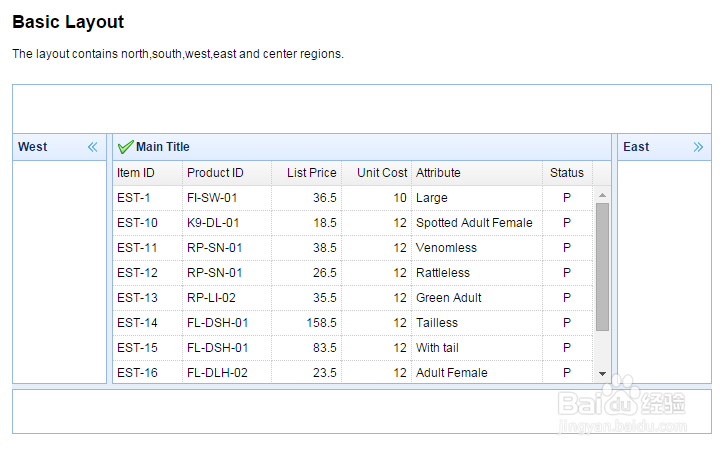
1、Basic Layout(基础布局),The layout contains north,south,west,east and center regions(这种布局包含北、南、西、东和中五个方位).
<!DOCTYPE html>
<html>
<head>
<meta charset="UTF-8">
<title>Basic Layout - jQuery EasyUI Demo</title>
<link rel="stylesheet" type="text/css" href="../../themes/default/easyui.css">
<link rel="stylesheet" type="text/css" href="../../themes/icon.css">
<link rel="stylesheet" type="text/css" href="../demo.css">
<script type="text/javascript" src="../../jquery.min.js"></script>
<script type="text/javascript" src="../../jquery.easyui.min.js"></script>
</head>
<body>
<h2>Basic Layout</h2>
The layout contains north,south,west,east and center regions.
<div style="margin:20px 0;"></div>
<div class="easyui-layout" style="width:700px;height:350px;">
<div data-options="region:'north'" style="height:50px"></div>
<div data-options="region:'south',split:true" style="height:50px;"></div>
<div data-options="region:'east',split:true" title="East" style="width:100px;"></div>
<div data-options="region:'west',split:true" title="West" style="width:100px;"></div>
<div data-options="region:'center',title:'Main Title',iconCls:'icon-ok'">
<table class="easyui-datagrid"
data-options="url:'datagrid_data1.json',method:'get',border:false,singleSelect:true,fit:true,fitColumns:true">
<thead>
<tr>
<th data-options="field:'itemid'
<th data-options="field:'productid'
<th data-options="field:'listprice',align:'right'
<th data-options="field:'unitcost',align:'right'
<th data-options="field:'attr1'
<th data-options="field:'status',align:'center'
</tr>
</thead>
</table>
</div>
</div>
</body>
</html>

2、Basic Layout(基础布局),运行效果如下图所示。
3、Add and Remove Layout(添加和移除布局),Click the buttons below to add or remove region panel of layout.
<!DOCTYPE html>
<html>
<head>
<meta charset="UTF-8">
<title>Add and Remove Layout - jQuery EasyUI Demo</title>
<link rel="stylesheet" type="text/css" href="../../themes/default/easyui.css">
<link rel="stylesheet" type="text/css" href="../../themes/icon.css">
<link rel="stylesheet" type="text/css" href="../demo.css">
<script type="text/javascript" src="../../jquery.min.js"></script>
<script type="text/javascript" src="../../jquery.easyui.min.js"></script>
</head>
<body>
<h2>Add and Remove Layout</h2>
Click the buttons below to add or remove region panel of layout.
<div style="margin:20px 0;">
<span>Select Region Panel:</span>
<select id="region">
<option value="north">North</option>
<option value="south">South</option>
<option value="east">East</option>
<option value="west">West</option>
</select>
<a href="javascript:void(0)" class="easyui-linkbutton" onclick="addPanel()">Add</a>
<a href="javascript:void(0)" class="easyui-linkbutton" onclick="removePanel()">Remove</a>
</div>
<div id="cc" class="easyui-layout" style="width:700px;height:350px;">
<div data-options="region:'north'" style="height:50px"></div>
<div data-options="region:'south',split:true" style="height:50px;"></div>
<div data-options="region:'east',split:true" title="East" style="width:100px;"></div>
<div data-options="region:'west',split:true" title="West" style="width:100px;"></div>
<div data-options="region:'center',title:'Center'"></div>
</div>
<script type="text/javascript">
function addPanel(){
var region = $('#region').val();
var options = {
region: region
};
if (region=='north' || region=='south'){
options.height = 50;
} else {
options.width = 100;
options.split = true;
options.title = $('#region option:selected').text();
}
$('#cc').layout('add', options);
}
function removePanel(){
$('#cc').layout('remove', $('#region').val());
}
</script>
</body>
</html>

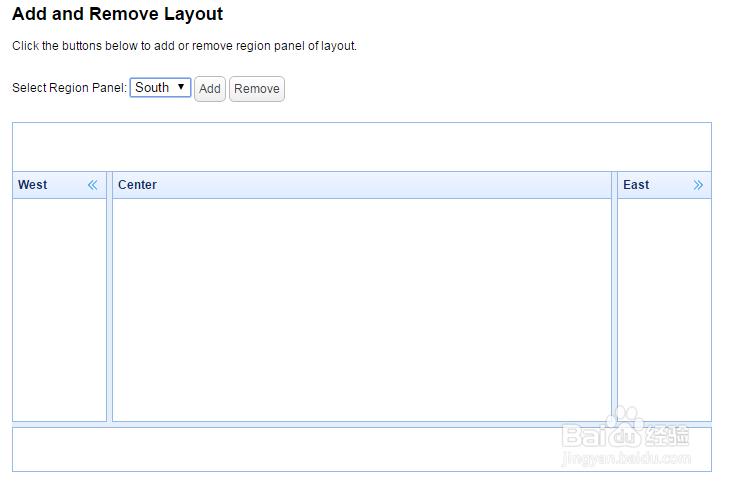
4、Add and Remove Layout(添加和移除布局),运行效果如下图所示。
5、Complex Layout(复杂布局),This sample shows how to create a complex layout(本例子展示如何创建一个复杂布局).
<!DOCTYPE html>
<html>
<head>
<meta charset="UTF-8">
<title>Complex Layout - jQuery EasyUI Demo</title>
<link rel="stylesheet" type="text/css" href="../../themes/default/easyui.css">
<link rel="stylesheet" type="text/css" href="../../themes/icon.css">
<link rel="stylesheet" type="text/css" href="../demo.css">
<script type="text/javascript" src="../../jquery.min.js"></script>
<script type="text/javascript" src="../../jquery.easyui.min.js"></script>
</head>
<body>
<h2>Complex Layout</h2>
This sample shows how to create a complex layout.
<div style="margin:20px 0;"></div>
<div class="easyui-layout" style="width:700px;height:350px;">
<div data-options="region:'north'" style="height:50px"></div>
<div data-options="region:'south',split:true" style="height:50px;"></div>
<div data-options="region:'east',split:true" title="East" style="width:180px;">
<ul class="easyui-tree" data-options="url:'tree_data1.json',method:'get',animate:true,dnd:true"></ul>
</div>
<div data-options="region:'west',split:true" title="West" style="width:100px;">
<div class="easyui-accordion" data-options="fit:true,border:false">
<div title="Title1" style="padding:10px;">
content1
</div>
<div title="Title2" data-options="selected:true" style="padding:10px;">
content2
</div>
<div title="Title3" style="padding:10px">
content3
</div>
</div>
</div>
<div data-options="region:'center',title:'Main Title',iconCls:'icon-ok'">
<div class="easyui-tabs" data-options="fit:true,border:false,plain:true">
<div title="About" data-options="href:'_content.html'" style="padding:10px"></div>
<div title="DataGrid" style="padding:5px">
<table class="easyui-datagrid"
data-options="url:'datagrid_data1.json',method:'get',singleSelect:true,fit:true,fitColumns:true">
<thead>
<tr>
<th data-options="field:'itemid'
<th data-options="field:'productid'
<th data-options="field:'listprice',align:'right'
<th data-options="field:'unitcost',align:'right'
<th data-options="field:'attr1'
<th data-options="field:'status',align:'center'
</tr>
</thead>
</table>
</div>
</div>
</div>
</div>
</body>
</html>

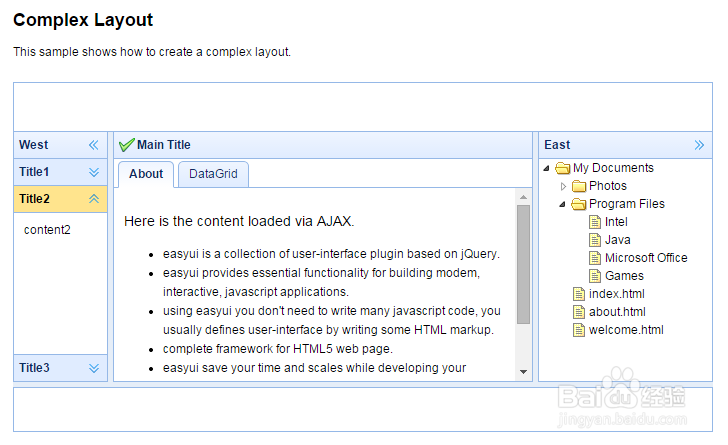
6、Complex Layout(复杂布局),运行效果如图所示。